Adding a new raw material to the inventory
This guide explains how to add a new raw material to the inventory from the staff app, including setting value and unit name.
Prerequisites
- You are logged in to the staff app with a role that has edit access to Inventory.
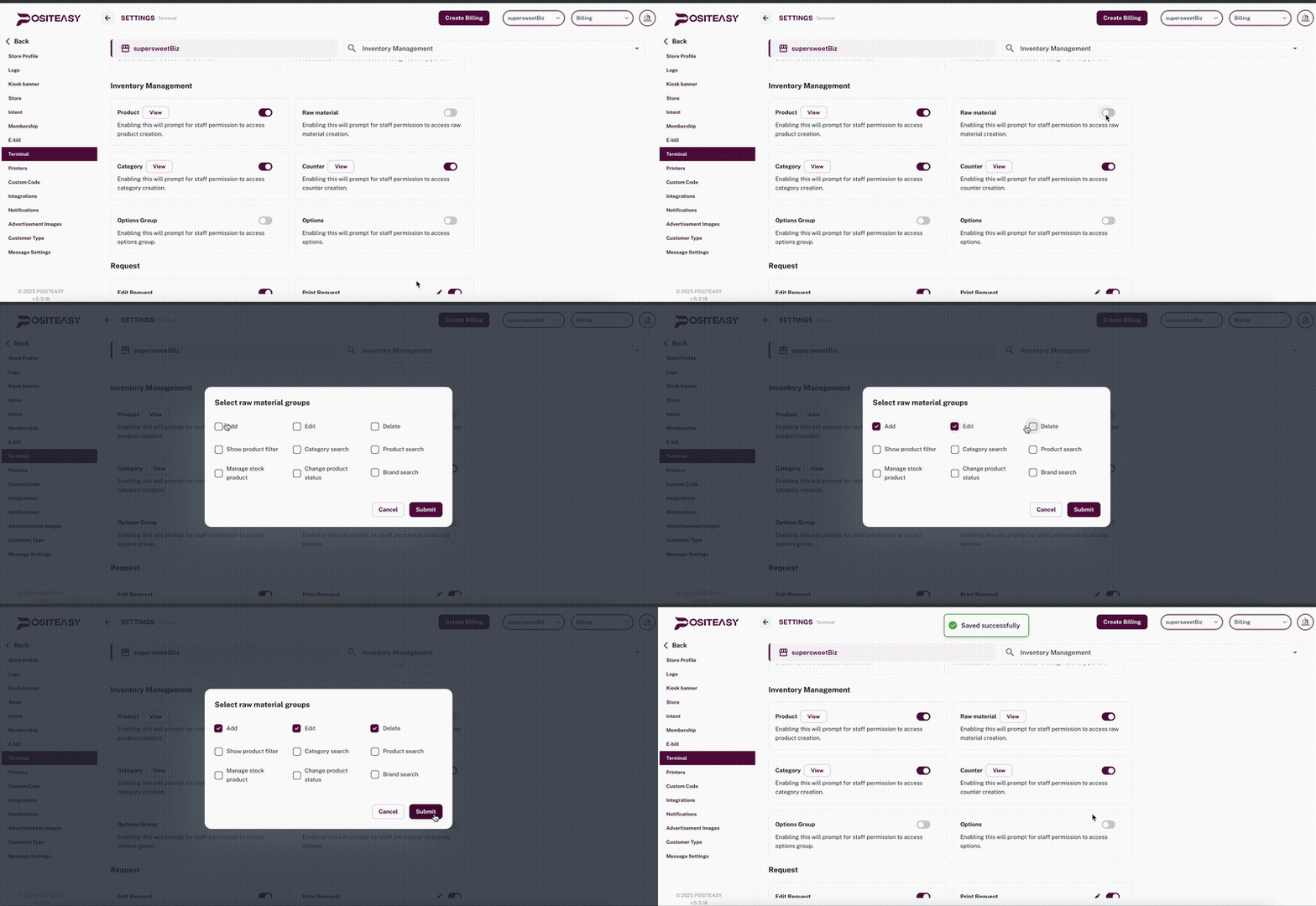
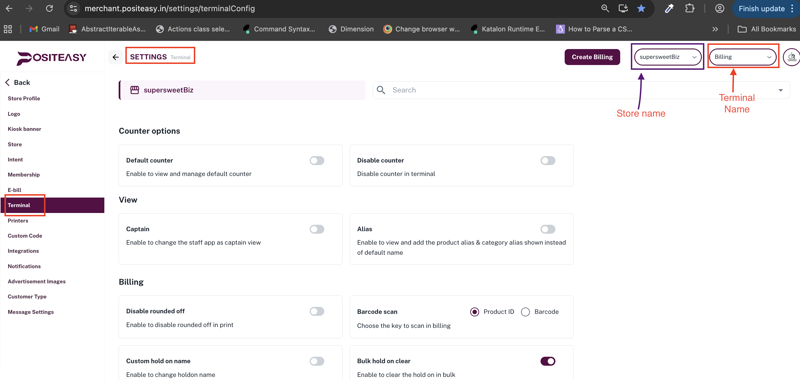
! Caution : While making changes to the terminal settings in the Merchant app, make sure you have selected the desired terminal.
Step 1: Open the Inventory module
- From the main profile icon, select Inventory → Raw Materials.
Step 2: Start adding a new raw material
- Click the Add new material
 .
. - A New raw material add form or dialog appears.
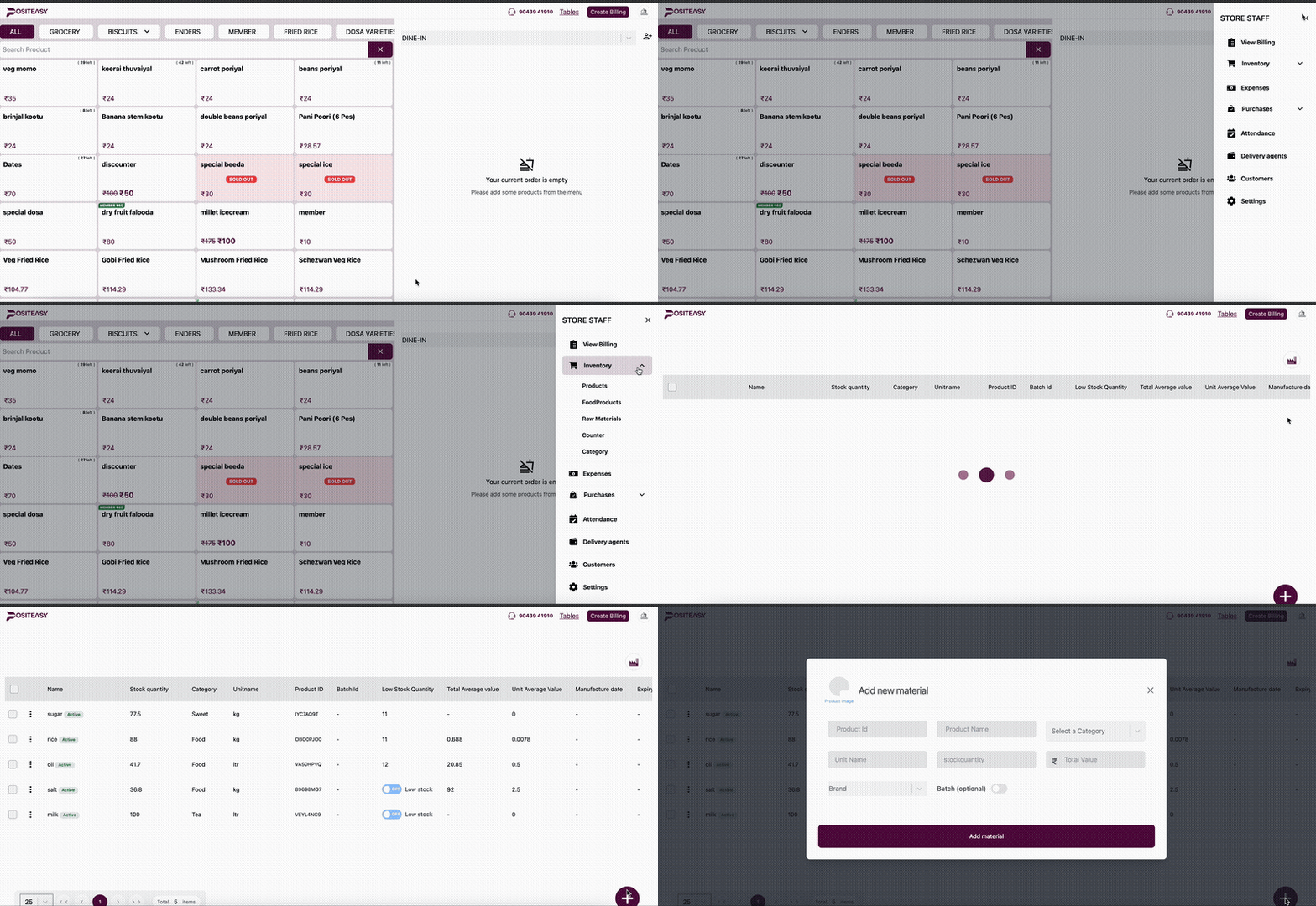
Example of the Inventory → Raw materials list page.
The new Raw material form with basic details section.
Step 3: Enter basic details
In the Basic details section, fill in:
- Product name: The raw material name.
- Category: Choose an existing category (for example, Vegetables, Spices, Packing materials).
- Unit name: Enter unit name for the raw material (for example, Gram, Litre, Piece).
- Stock Quantity: Enter the current stock of the raw material.
- Total value: Enter the total value of the current raw material stock.
- Brand: Choose an existing brand (for example, India Gate, Aachi, TATA).
Ensure the raw material name is unique and accurate so reports and search work correctly.
Click the Add material button to add the raw material.